
When to change your password ?
You should change your password when it is about to expire (you can see this in the bottom left corner of the main menu after logging in). |  |
How to change your password ?
To change your password, navigate to the Settings menu and press the Change Password button at the top of the screen. |  |
From here you would populate your current password as well as specify a new password and press the Change Password button. If there are issues with your new password they will appear in red next to the Change Password button once the button has been pressed. | 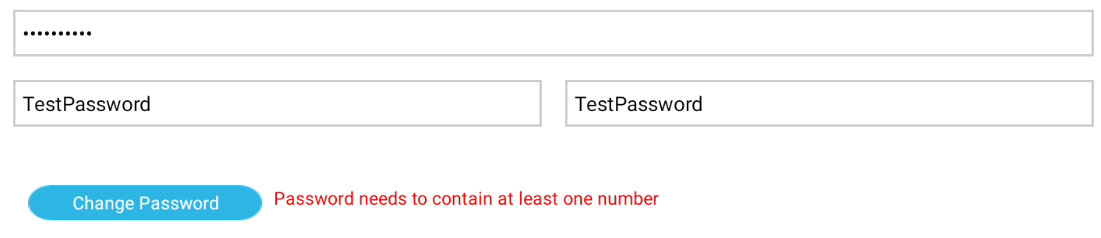 |
Once your password has been changed you will see a green message to confirm that the password has been changed. |  |
From there you should sign out of the app and sign in again using the new password.
Important
If you do not sign out and sign back in with the new password the app might not work properly.
Issues
If you run into any issues when trying to change your password, send a ticket to support@warmworks.co.uk asking for your password to be changed. Please include:
- Your username used for the app
- Which app/project you want to reset the password for.
- (optionally) why you could not change your password yourself.
- (optionally) password you would like to use. (Can not be the same as your current password)